How to Check Suspicious Outbound Connections
June 14, 2026
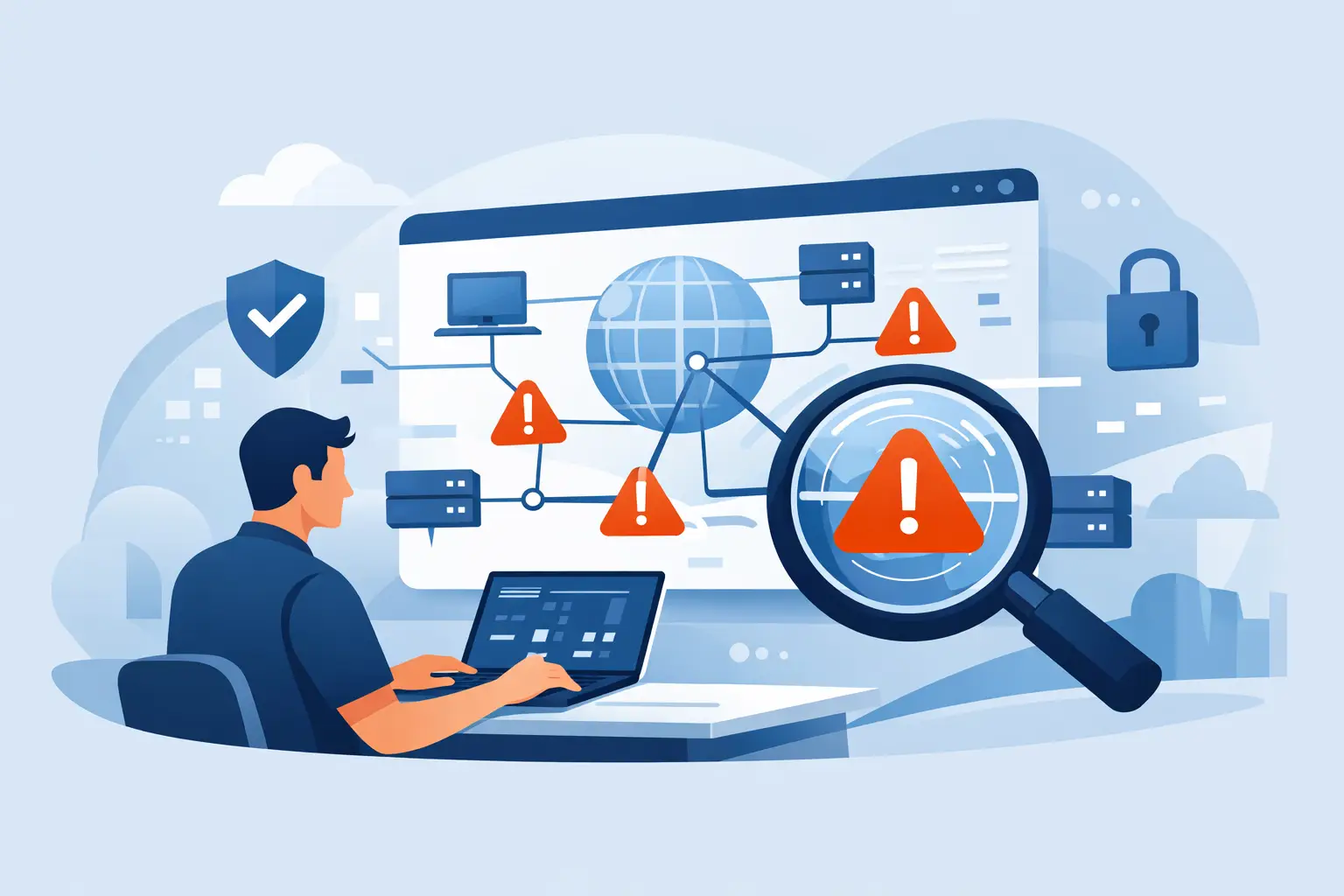
A laptop that feels normal can still be chatting with places it should not. If you need to check suspicious outbound connections, the goal is not to panic at every IP address. The goal is to separate expected traffic from behavior that suggests malware, a bad extension, a hijacked process, or a server component making calls you never approved.
Outbound traffic is simply your machine reaching out. Sometimes that is harmless - a browser loading a site, a package manager checking for updates, a backup client syncing files. Sometimes it is the first visible clue that something on the host is doing work for someone else. That might mean data leaving the machine, a persistence mechanism calling home, or a script downloading a second-stage payload.
What makes an outbound connection suspicious?
A connection becomes suspicious when the destination, timing, process, or volume does not match how the machine is supposed to behave. A developer laptop making HTTPS requests to GitHub is ordinary. That same laptop repeatedly connecting to a VPS in a country you do not do business with at 3:12 a.m. from a process you do not recognize is a different story.
The hard part is context. Security tools that dump raw sockets and IPs often leave you staring at noise. A plain-English answer you can trust starts with four questions: what process opened the connection, where is it going, when did it start, and does that behavior make sense for this host?
Some patterns deserve extra scrutiny. A binary in a temporary folder making outbound TLS connections is odd. So is a process with a misleading name like update-helper or chrome_service that is not signed, not expected, or not tied to installed software. Repeated short-lived connections to many destinations can point to scanning, ad fraud, or botnet activity. A single long-lived encrypted session is not automatically malicious, but if it comes from an unknown executable, it should not get a free pass.
How to check suspicious outbound connections without getting lost
Start at the host, not the firewall. Network appliances can show that traffic happened, but they usually cannot tell you enough about the local process that caused it. On a single Mac or Linux box, the useful unit of analysis is process plus destination.
On macOS and Linux, your first pass should answer three practical questions. Which processes currently have open network connections? Which executables own those processes? And which of those executables look unfamiliar, recently introduced, or oddly placed on disk?
On Linux, tools like ss and lsof can quickly map active connections to process IDs. On macOS, lsof and netstat still help, though you often need to pair them with process inspection commands to understand the binary path, parent process, and launch mechanism. This is where many people stop too early. Seeing a process name alone is not enough. Malware authors know how to make names look boring.
A better workflow is to inspect the process path, hash the file if needed, review its parent process, and check whether it has persistence. If the machine keeps launching the same executable at login or boot and that executable also reaches out to unknown infrastructure, the signal gets stronger.
Check suspicious outbound connections with host context
An outbound connection is only one piece of the picture. The surrounding system clues matter just as much.
If you find a suspicious connection from a browser helper, check browser extensions. If you see traffic from a launch agent or service, inspect startup items. If a server process suddenly begins making calls to new destinations, look for recent file changes, modified cron jobs, authentication events, or shell history that explains the change. Good investigation is less about one perfect indicator and more about several ordinary clues lining up.
This is why local host monitoring matters. A tiny security guard for your computer should not just say, "connection observed." It should connect the dots across startup items, network activity, changed files, and threat intelligence so you can tell whether the machine is simply busy or actually compromised.
What normal traffic looks like
Many false alarms come from not knowing what healthy systems do. Software updaters often use CDNs with rotating IPs. Browsers open multiple encrypted sessions to domains you never typed because pages pull content from dozens of third parties. Development tools contact package registries, telemetry endpoints, and build services. Containerized apps may make traffic appear to come from processes that are less obvious at first glance.
That means a strange-looking IP is not enough on its own. Domains and certificates help, but they are not perfect either. Benign software can use cloud providers, and malicious software can hide behind legitimate hosting. The real question is whether the process, destination pattern, and host role line up.
A personal MacBook and a production Linux server have different baselines. A laptop will show browser noise, chat apps, sync clients, and occasional package manager traffic. A server should be much quieter and easier to reason about. Unexpected outbound traffic on a server often deserves faster action because the allowed behavior is narrower.
Red flags worth taking seriously
The strongest red flags are combinations, not isolated events. An unsigned executable in a user-writable directory making periodic encrypted connections is a problem. So is a newly created startup item tied to a process that talks to infrastructure with poor reputation. If the same process also requested unusual permissions, accessed sensitive files, or appeared shortly after a suspicious login, the case becomes more convincing.
Pay attention to timing. Connections that begin immediately after login, reboot, or network availability often suggest persistence. Bursts of outbound traffic right after a script runs or a document is opened can indicate execution chains. If the destination changes constantly while the process stays the same, that may signal a command-and-control pattern designed to stay resilient.
Threat intelligence can help, but it is not magic. A destination with a known bad reputation is useful. A destination with no reputation is not clean by default. Plenty of fresh malicious infrastructure has little or no history. This is where behavior on the host carries more weight than a simple blocklist result.
What to do when you find one
Do not start by deleting random files. First, preserve enough evidence to understand what happened. Note the process name, PID, executable path, destination IP or domain, port, start time, and any related startup item or service. If the system is a server, consider whether you need to isolate it from the network before digging deeper. That depends on the role of the host and the risk of downtime.
If you are on a personal machine and the process looks clearly malicious, disconnecting from the network can stop active communication while you investigate. If it is a production box, immediate isolation might break customer-facing workloads, so the right move depends on impact. Security is full of trade-offs. Fast containment is good, but blind containment can create a different outage.
After that, inspect persistence. Check launch agents and daemons on macOS, and systemd units, cron, shell profiles, and other startup paths on Linux. Review recent authentication activity. Look for related files in temporary directories, Downloads, hidden user folders, or paths that imitate legitimate software names.
If you want less manual stitching, a tool like avai can help because it monitors multiple security-relevant surfaces locally and explains findings in plain English instead of leaving you with disconnected logs. That matters when you are trying to decide whether a connection is weird, actually risky, or just part of a noisy but normal application.
Why simple visibility beats bigger tooling here
A lot of people assume they need enterprise network detection to solve this problem. Most do not. If your goal is to check suspicious outbound connections on one laptop, one workstation, or a small fleet of Linux servers, clarity beats complexity. You need trustworthy local visibility, process attribution, and enough threat context to make a decision.
Cloud-heavy tools can create their own discomfort if you are privacy-conscious and do not want your endpoint data shipped elsewhere. On-device, read-only monitoring is often the better fit for small teams and individual users who want answers without standing up a SOC.
The useful test is simple: when you see a connection you do not recognize, can you quickly learn what opened it, whether it belongs there, and what to do next? If the answer is no, the tool is giving you telemetry, not understanding.
Suspicious outbound traffic is not always malware. Sometimes it is a forgotten plugin, a sloppy script, or software that changed behavior after an update. But that uncertainty is exactly why host-level context matters. The fastest path to confidence is not staring harder at IP addresses. It is seeing the machine clearly enough to tell when something is speaking in a voice that is not its own.